
aws
HTTPS Links for S3 Attachments
CloudMailin allows you to receive email attachments directly to Cloud Storage
such as AWS S3. Starting Oct 15 2021 these links will use HTTPS.

CloudMailin Team
1 Oct 2021

CloudMailin has allowed you to receive email via webhook for a number of years. One of the great features of CloudMailin is the ability to upload your email message attachments directly to Cloud Storage such as Amazon Web Services (AWS) S3, Microsoft Azure Blob Storage or Google Cloud Storage.
Offloading email attachments to Cloud Storage allows your Web Application / Webhook to receive a much lighter HTTP POST with only the email body and metadata without having to process large files and attachments.
We're excited to announce that customers are now able to upload the entire email directly to AWS S3 and have the URL of the upload delivered directly to your existing webhook. The full email can be uploaded as either the entire RAW email (as an EML file) or as a fully parsed email in JSON format.
Of course, as with uploaded email attachments, the email will be stored securely and encrypted within your own AWS S3 bucket, so long as your S3 bucket has encryption enabled.
There are a number of options that this feature opens up and we're really happy to be able to share it with customers. You could use it to asynchronously process inbound emails or even create a complete email backup solution stored in AWS. We think the ability to access entire email as JSON will be especially useful for building serverless functions. We're excited to see how our customers use the API.
We're now accepting customers into the beta for full email upload to AWS S3. Simply contact us to find out more. We'll be rolling out the feature to all of our customers on the professional plan and above over the next couple of weeks.
We've been testing the feature ourselves for several months now and we're really pleased with the options and functionality that it opens up for us.
Customers that want to upload to Azure Blob Storage or Google Cloud Storage can also apply to join the beta of this product, which should be available in a couple of weeks time.
There are a few simple steps to get setup sending email to Amazon Web Services S3. The process is very similar for Azure blog storage or Google Cloud Storage. However, we'll only cover AWS here.
There are several ways that you can grant permission for CloudMailin to create files in your S3 Bucket. The simplest is to use the Amazon Web Services (AWS) web console.
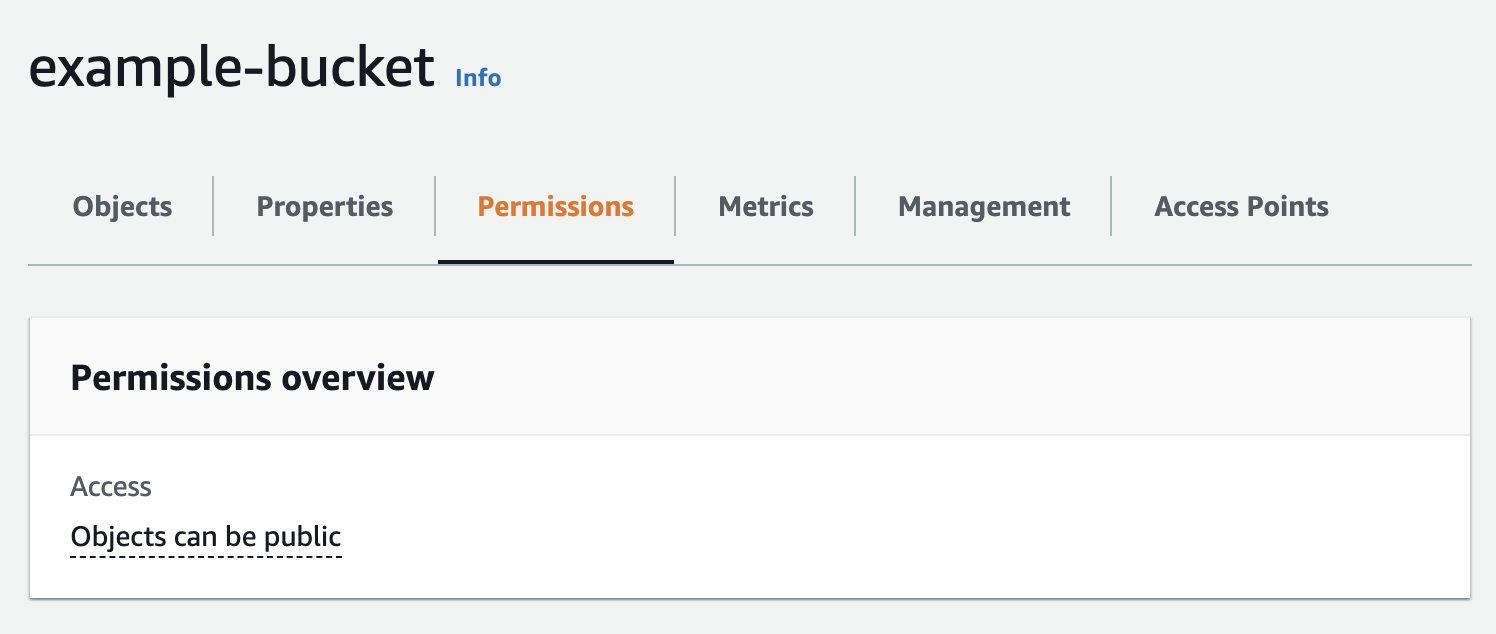
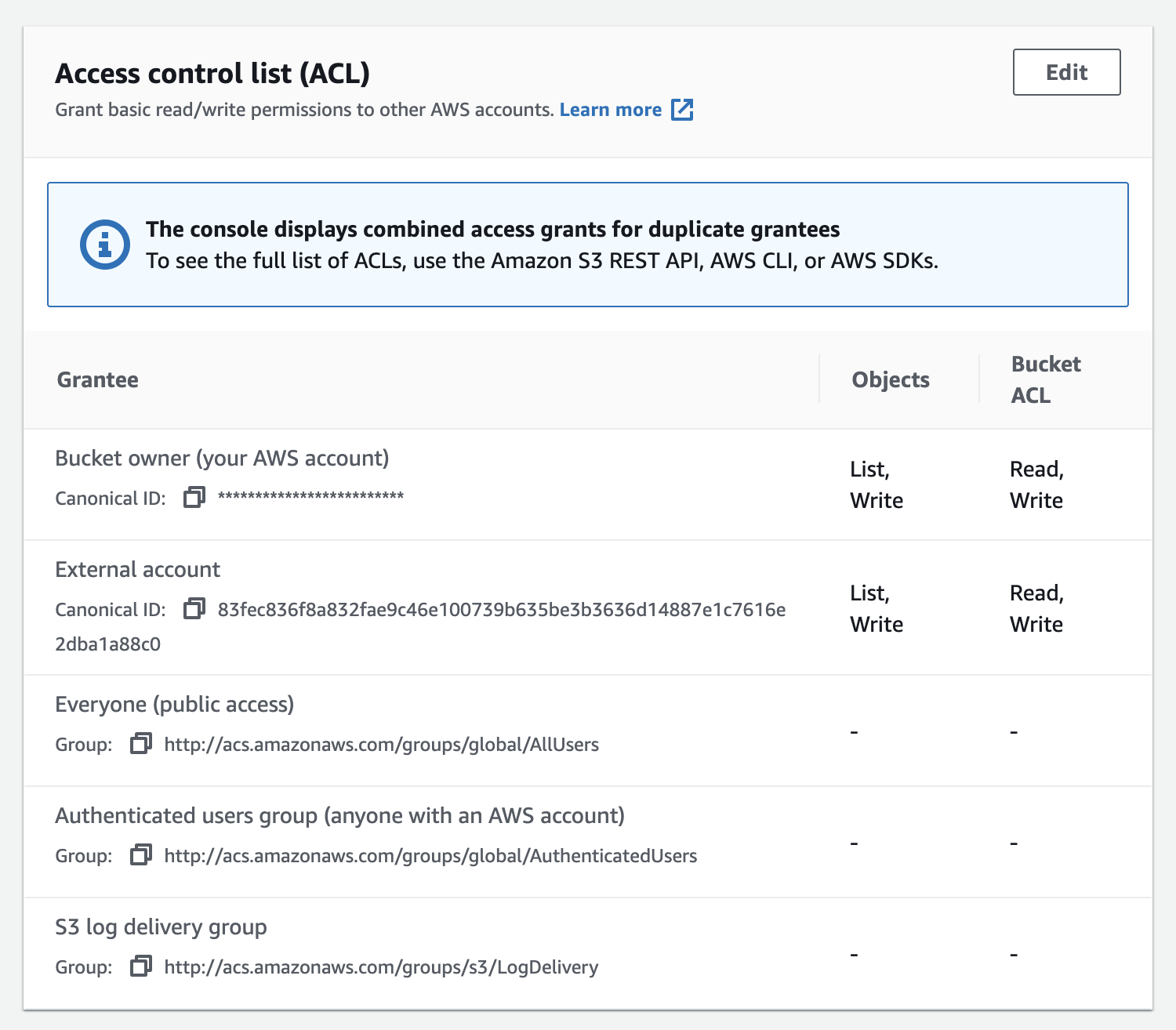
Edit and then Add grantee
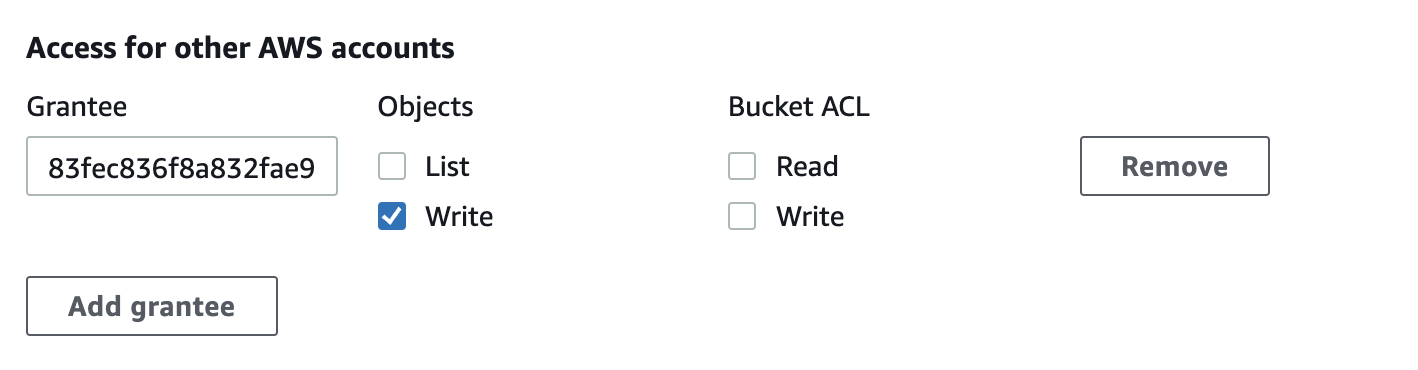
grantee field from above, paste the CloudMailin Canonical ID, choose
write and then saveCloudMailin should now have permission to add files to your S3 bucket.
Now that you've added the permission to upload emails, head to CloudMailin and enable the feature.
Add full message storage.bucket_name/path_prefix). You'll also need
to add your S3 bucket region.Bucket owner full control here.Format.There are two formats available for the email:
RAW - This is the full raw email in EML format. This includes all of the
headers and the body of the email but no parsing will have been performed on
the email.JSON - The email is parsed into JSON so that it can be more easily read.
This makes working with the email much more simple. This will also contain any
links to the attachments (fully parsed and stored) if you have
email attachment cloud storage enabled.Once you've enabled the full email cloud storage functionality, each HTTP POST
to your webhook will contain a store_url parameter in the envelope. In the
JSON format this will look similar to the following:
"envelope": {
  "to": "to@example.com",
  "from": "from@example.com",
  "helo_domain": "localhost",
  // ...
  "store_url": "https://example.s3.amazonaws.com/2021_12_01_00_00_00_a8ed6a3f7aeb93ce726b9dd2dea9eb53.eml"
}
It's important to note that, like the email attachment storage, the store_url
parameter containing the URL to the full email is designed to be parsed.
Parsing the URL will return the bucket name and the path (referred to as the key by AWS). You can then use the bucket and key with the AWS SDK or library of your choice to take action with the file.
As always there's information in the documentation and we're always looking for feedback. Feel free to Contact Us to join the beta and if you have any questions or comments!
CloudMailin Team
16 Nov 2021
CloudMailin Team
1 Oct 2021

CloudMailin Team
10 Jul 2020

CloudMailin Team
1 Mar 2020